Five shortcuts, all rebindable.
One key brings an app forward, or launches it.
Presets take only what macOS leaves free, so nothing fires twice.
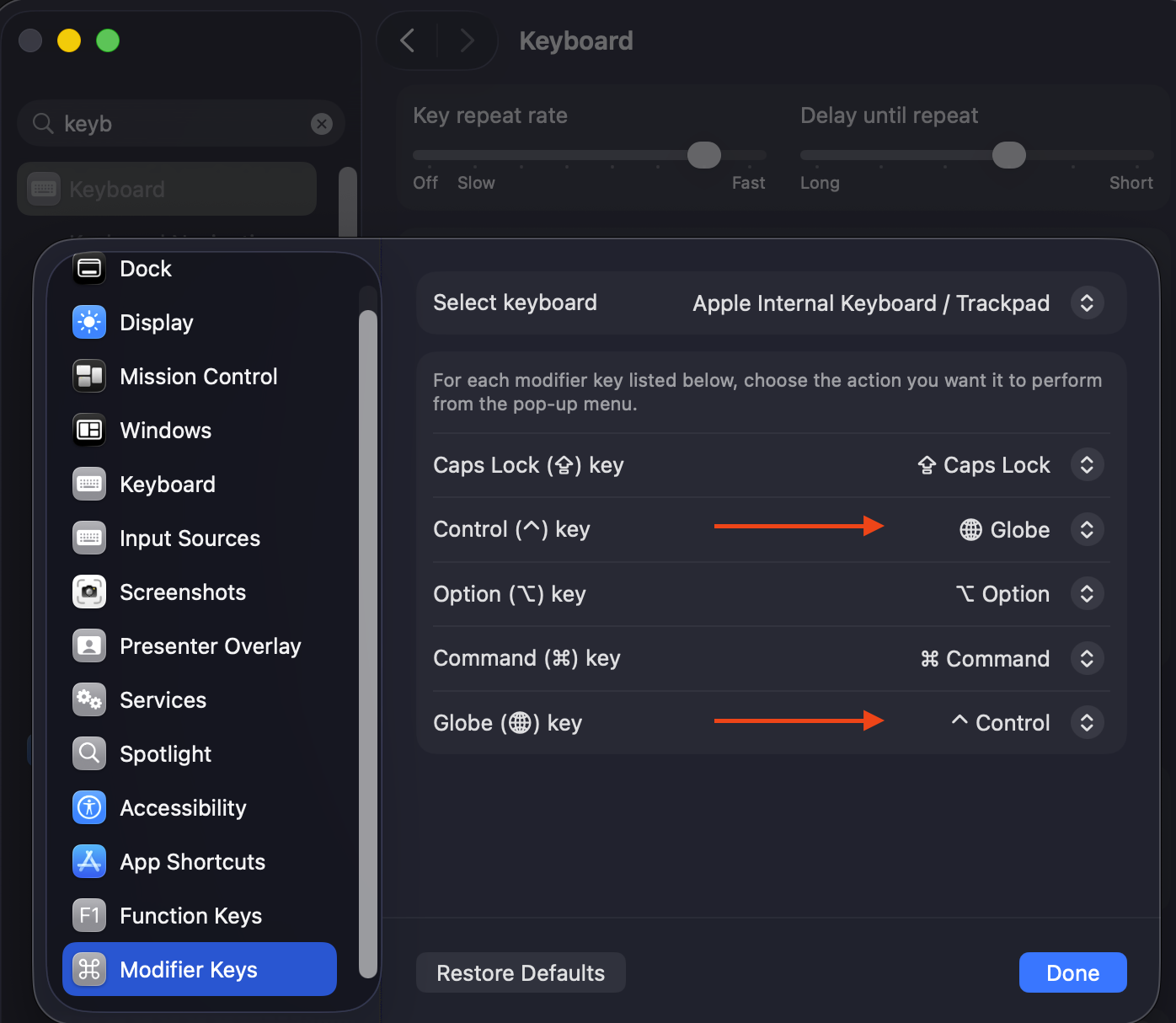
 Coming from a Mac? GameShifter makes a Windows keyboard work like a Mac’s, and WinWin matches its shortcuts with one setting.
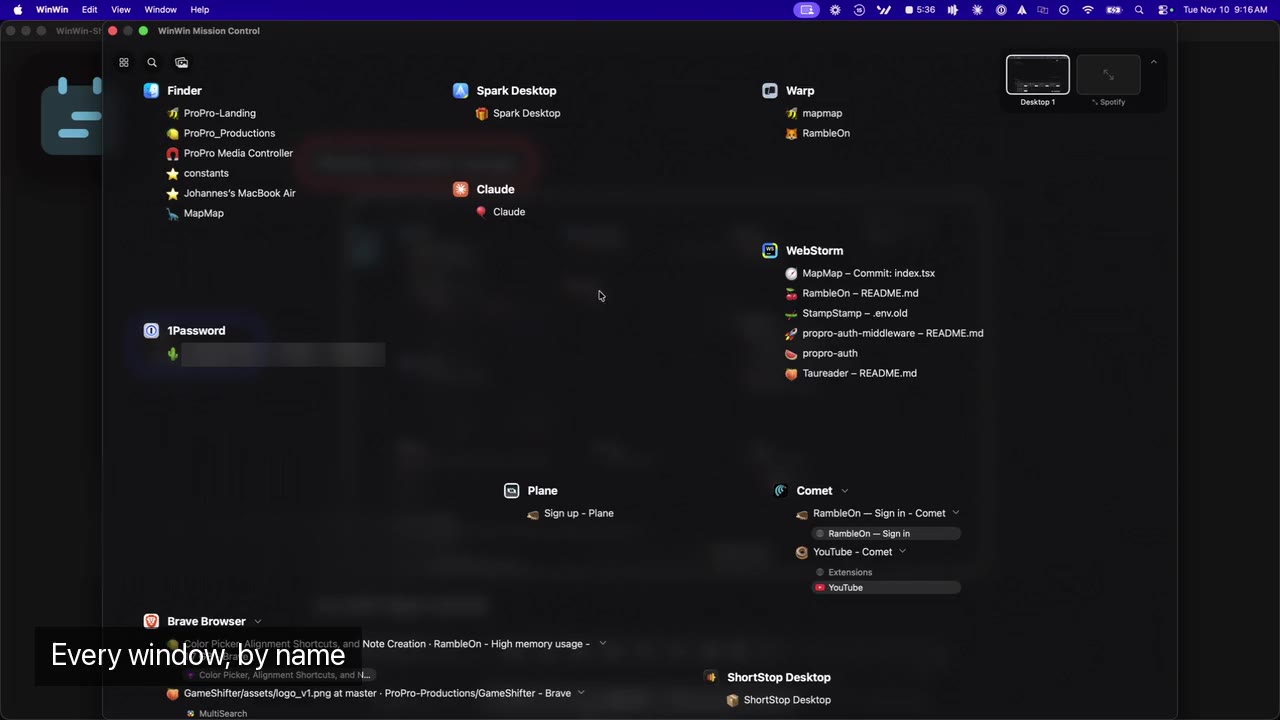
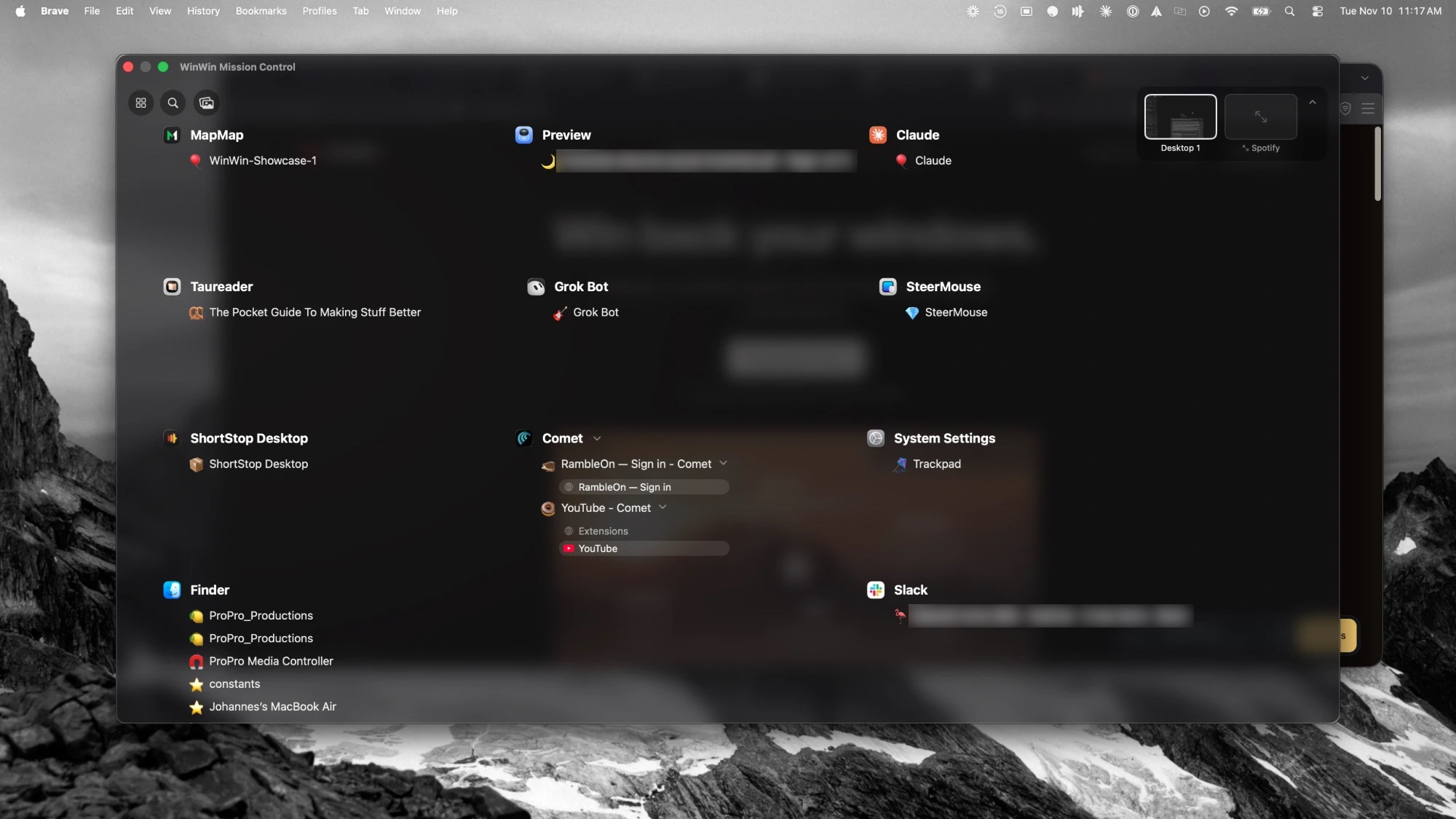
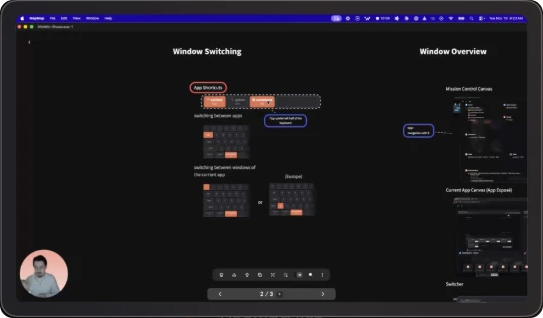
Mission Control, rebuilt as a canvas.
Every app, with its windows listed by name.
- Shift
- Turns every badge into a close button.
- R
- Reorganizes. Each press gives a new arrangement.
- Tabs
- With the TabTab extension, browser windows list their tabs. Click one to go there.
 tabtab.app
- Spaces
- Jump to another desktop from the bar.
Type a few letters, land there.
The switcher shows this app’s windows, then searches all of them.
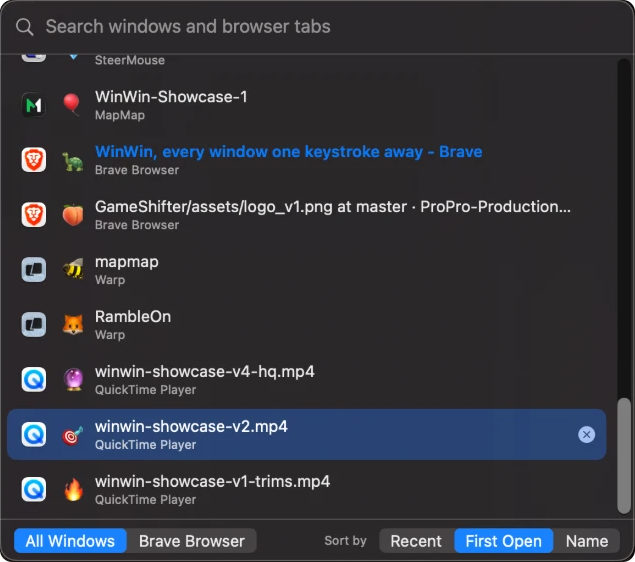
- Type
- Searches every window and browser tab.
- ↑↓
- Move through the list. So does the scroll wheel.
- Return
- Goes to the window. So does a middle click.
- Anywhere
- The wheel and the middle click work wherever the cursor is.
Every window gets a face.
One of 648 icons in its own tint, the same in the switcher and on both canvases. Or switch to emoji.
Bring your Mac habits to Windows.
GameShifter’s Mac mode makes a Windows keyboard behave as it does on macOS. Paired with WinWin, both systems feel like one.
WinWin and GameShifter are planned as a bundle.
Meet GameShifterOne WinWin, on Mac and Windows.
Both versions arrive together, with the same five features.
On the Mac
- Trackpad gestures and corner clicks
- A bar of your Spaces on the overview
- Live desktop and Aerial backdrops in Focus mode
On Windows
- An app picker that knows your most used apps
- No permissions to grant
- Shortcuts that match GameShifter’s Mac mode

Get WinWin.
- Mac
- macOS 14 Sonoma or later. A notarized download, outside the App Store.
- Windows
- Windows 10 or 11. Works best with GameShifter.
- Permissions
- On a Mac: Accessibility, to switch windows, and Screen Recording for previews. None on Windows.